How to Install SuiteCRM on Ubuntu 20.04: A Complete Guide

Introduction
SuiteCRM is a robust open-source Customer Relationship Management (CRM) software solution designed to streamline a company’s sales, marketing, and service management processes. In this article, we’ll walk you through the steps to install SuiteCRM on Ubuntu 20.04.
Learn how to install SuiteCRM on Ubuntu Linux with Apache support in this step-by-step guide.
Begin by installing Apache2, the web server required to run SuiteCRM, ensuring a robust and reliable foundation for your CRM setup.
SuiteCRM relies on a web server to function, with Apache2 being one of the most widely used options today. To get started, install Apache on Ubuntu by running the following commands:
sudo apt update
sudo apt install apache2
Use the following commands to stop, start, and configure the Apache2 service to automatically start whenever the server boots.
sudo systemctl stop apache2.service
sudo systemctl start apache2.service
sudo systemctl enable apache2.service
You can quickly verify the setup by entering your server’s public IP address in a web browser.
http://your_server_ip
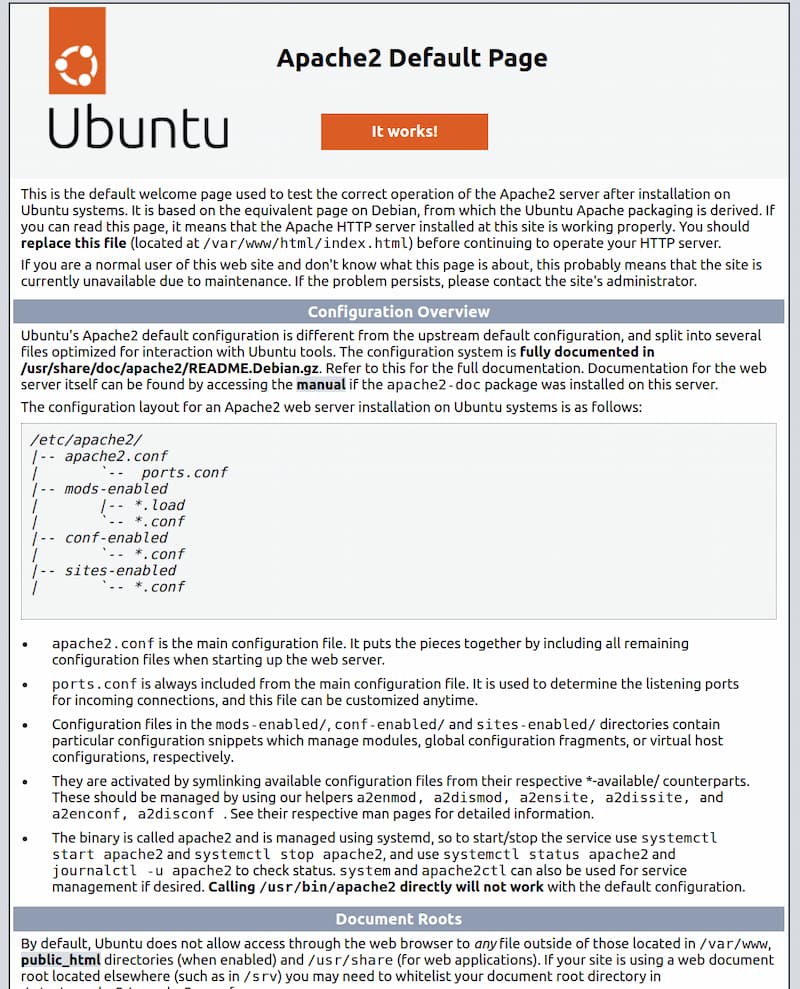
The default Apache web page on Ubuntu 22.04 serves as a placeholder for informational and testing purposes. Below is an example of this default Apache web page:
Set up MySQL to power your SuiteCRM database efficiently, ensuring seamless performance and secure data management.
To efficiently store and manage data for your site, you’ll need to install a database system. MySQL, a widely used and reliable database management system, is commonly integrated within PHP environments to support platforms like SuiteCRM.
SuiteCRM also requires a reliable database server, and MySQL is an excellent choice for an open-source solution, offering strong performance and seamless integration.
To install mysql-server, simply execute the following commands in your terminal.
sudo apt install mysql-server
confirm installation by typing Y, and then ENTER.
Once the installation is complete, it’s important to run the security script that comes pre-installed with MySQL to ensure your system is secure.
Start by opening the MySQL prompt:
sudo mysql
Then run the following ALTER USER command to change the root user’s authentication method to one that uses a password. The following example changes the authentication method to mysql_native_password: ALTER USER 'root'@'localhost' IDENTIFIED WITH mysql_native_password BY 'password';
After making this change, exit the MySQL prompt:
mysql> exit
Start the interactive script by running:
sudo mysql_secure_installation
This will ask if you want to configure the VALIDATE PASSWORD PLUGIN.
Answer Y for yes, or anything else to continue without enabling.
VALIDATE PASSWORD PLUGIN can be used to test passwords
and improve security. It checks the strength of password
and allows the users to set only those passwords which are
secure enough. Would you like to setup VALIDATE PASSWORD plugin?Press y|Y for Yes, any other key for No:
If you answer “yes”, you’ll be asked to select a level of password validation. Keep in mind that if you enter 2 for the strongest level, you will receive errors when attempting to set any password which does not contain numbers, upper and lowercase letters, and special characters:
There are three levels of password validation policy:
LOW Length &>= 8
MEDIUM Length &>= 8, numeric, mixed case, and special characters
STRONG Length &>= 8, numeric, mixed case, special characters and dictionary filePlease enter 0 = LOW, 1 = MEDIUM and 2 = STRONG: 1
Regardless of whether you chose to set up the VALIDATE PASSWORD PLUGIN, your server will next ask you to select and confirm a password for the MySQL root user. This is not to be confused with the system root. The database root user is an administrative user with full privileges over the database system. Even though the default authentication method for the MySQL root user doesn’t involve using a password, even when one is set, you should define a strong password here as an additional safety measure.
If you enabled password validation, you’ll be shown the password strength for the root password you just entered and your server will ask if you want to continue with that password. If you are happy with your current password, enter Y for “yes” at the prompt:
Estimated strength of the password: 100
Do you wish to continue with the password provided?(Press y|Y for Yes, any other key for No) : y
For the rest of the questions, press Y and hit the ENTER key at each prompt. This will remove some anonymous users and the test database, disable remote root logins, and load these new rules so that MySQL immediately respects the changes you have made.
Once you’re done, verify that you can log in to the MySQL console by typing the following command:
sudo mysql
This will connect to the MySQL server as the administrative database user root, which is inferred by the use of sudo when running this command. Below is an example output:
OutputWelcome to the MySQL monitor. Commands end with ; or \g.
Your MySQL connection id is 10
Server version: 8.0.28-0ubuntu4 (Ubuntu)Copyright (c) 2000, 2022, Oracle and/or its affiliates.
Oracle is a registered trademark of Oracle Corporation and/or its affiliates. Other names may be trademarks of their respective owners.
Type ‘help;’ or ‘\h’ for help. Type ‘\c’ to clear the current input statement.
mysql>
exit the MySQL
mysql> exit
Install PHP
< p>PHP is a key component of our setup, responsible for processing code to deliver dynamic content to the end user.
To complete the PHP package setup, you’ll need to install php-mysql, a PHP module that enables communication between PHP and MySQL-based databases.
sudo apt install php libapache2-mod-php php-mysql
After the installation is complete, run the following command to verify your PHP version:
php -v
PHP 8.1.2 (cli) (built: Mar 4 2022 18:13:46) (NTS) Copyright (c) The PHP Group Zend Engine v4.1.2, Copyright (c) Zend Technologies with Zend OPcache v8.1.2, Copyright (c), by Zend Technologies
Then update and upgrade to PHP 7.*
sudo apt update
Install PHP 7.* / 8.* and additional packages.
Check PHP version and replace with * sign.
sudo apt-get install php7.*-cli php7.*-common php7.*-json php7.*-opcache php7.*-mysql php7.*-xmlrpc php7.*-mbstring php7.*-gd php7.*-zip php7.*-fpm php7.*-intl php7.*-simplexml php7.*-mcrypt php7.*-soap php7.*-curl
Run the commands below to open the Apache2 PHP default file.
sudo nano /etc/php/7.1/apache2/php.ini
Then change to the following lines below in the file and save.
file_uploads = On
allow_url_fopen = On
memory_limit = 256M
upload_max_filesize = 64M
max_execution_time = 30
display_errors = Off
max_input_vars = 1500
date.timezone = America/Chicago
Get started with SuiteCRM by downloading the latest version today.
wget https://suitecrm.com/files/162/SuiteCRM-7.11/525/SuiteCRM-7.11.18.zip
Install unzip utility
sudo apt install unzip
Extract the contents of the downloaded ZIP file into the desired directory. /var/www/html/.
sudo unzip SuiteCRM-7.11.18.zip -d /var/www/html/
Next, create a ‘suitecrm’ directory and unzip the files into it /var/www/html/suitecrm directory.
unzip SuiteCRM-8.0.3.zip -d /var/www/html/suitecrm
Next, execute the following commands to ensure the correct permissions are set.
sudo chown -R www-data:www-data /var/www/html/suitecrm/
sudo chmod -R 755 /var/www/html/suitecrm/
Learn how to easily install SuiteCRM on Ubuntu 20.04 and get started with your powerful CRM solution.
To complete the SuiteCRM installation, open your browser and enter http://IPaddress/install.php in the address bar to access the web installation wizard. For example:
http://192.168.1.131/install.php
Next, simply follow the on-screen instructions to complete the SuiteCRM installation successfully.
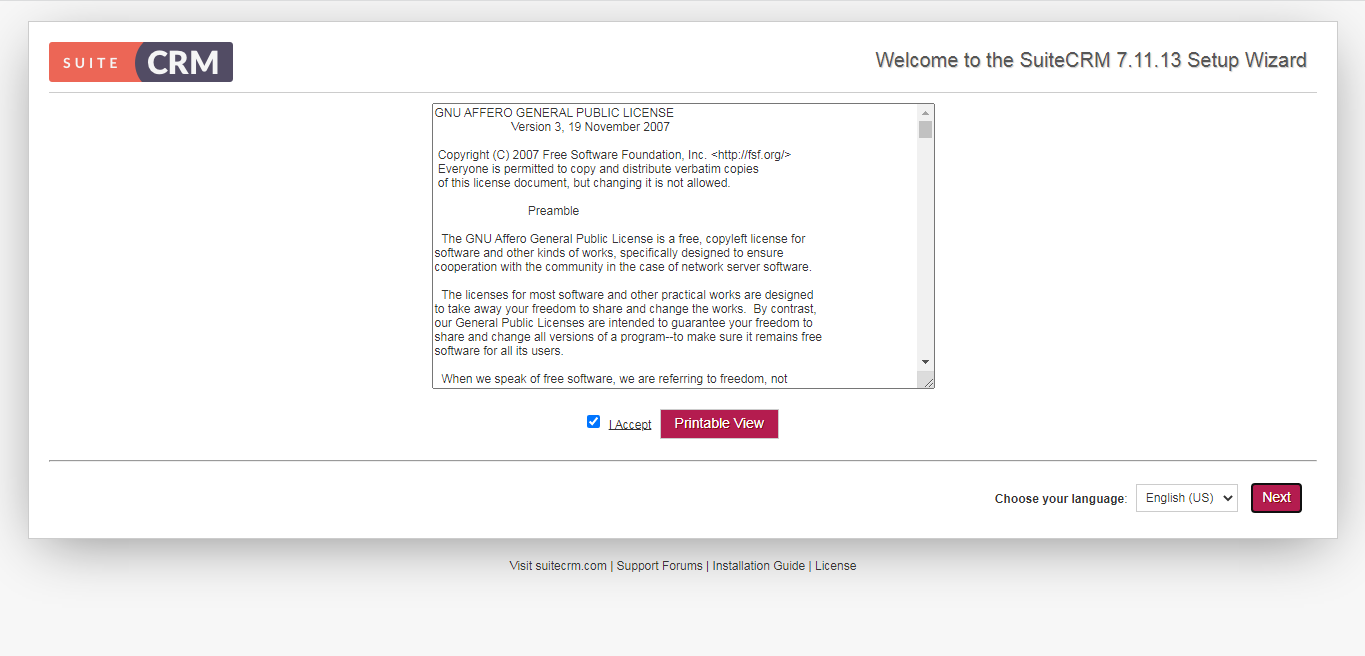
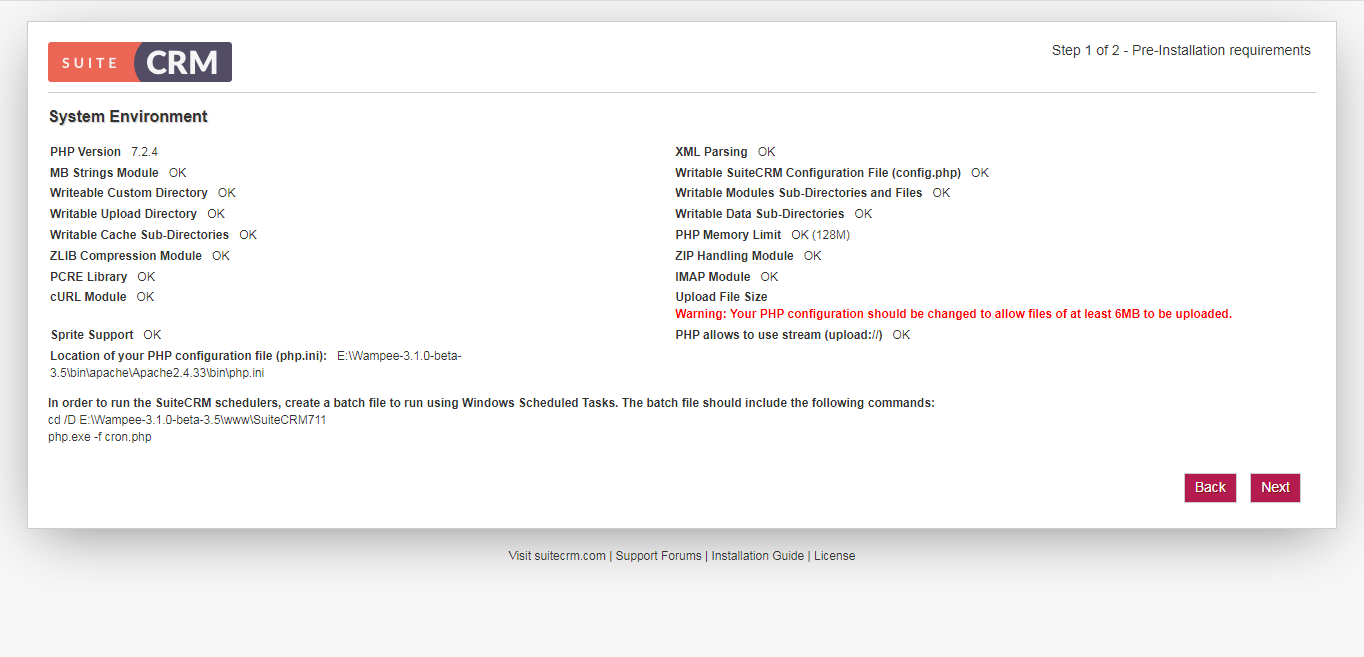
See the environment check details below.
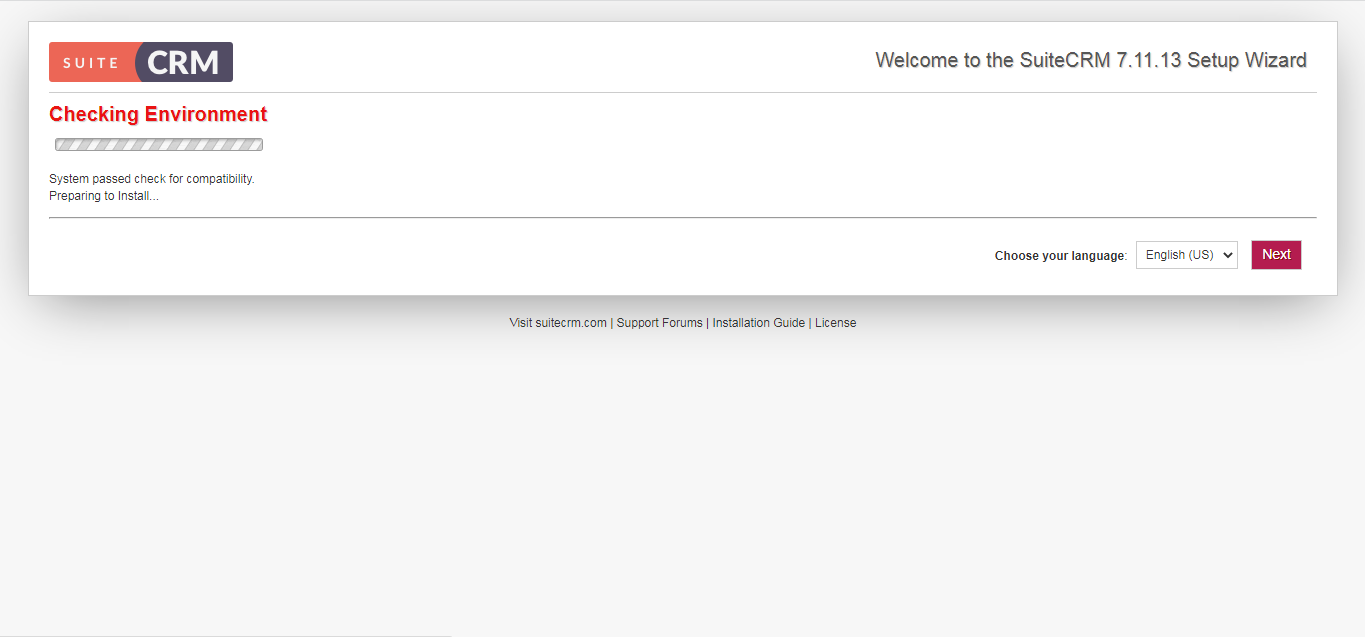
System Configuration: Please provide all the required information as outlined below.
Below are the database configuration settings you need to apply.
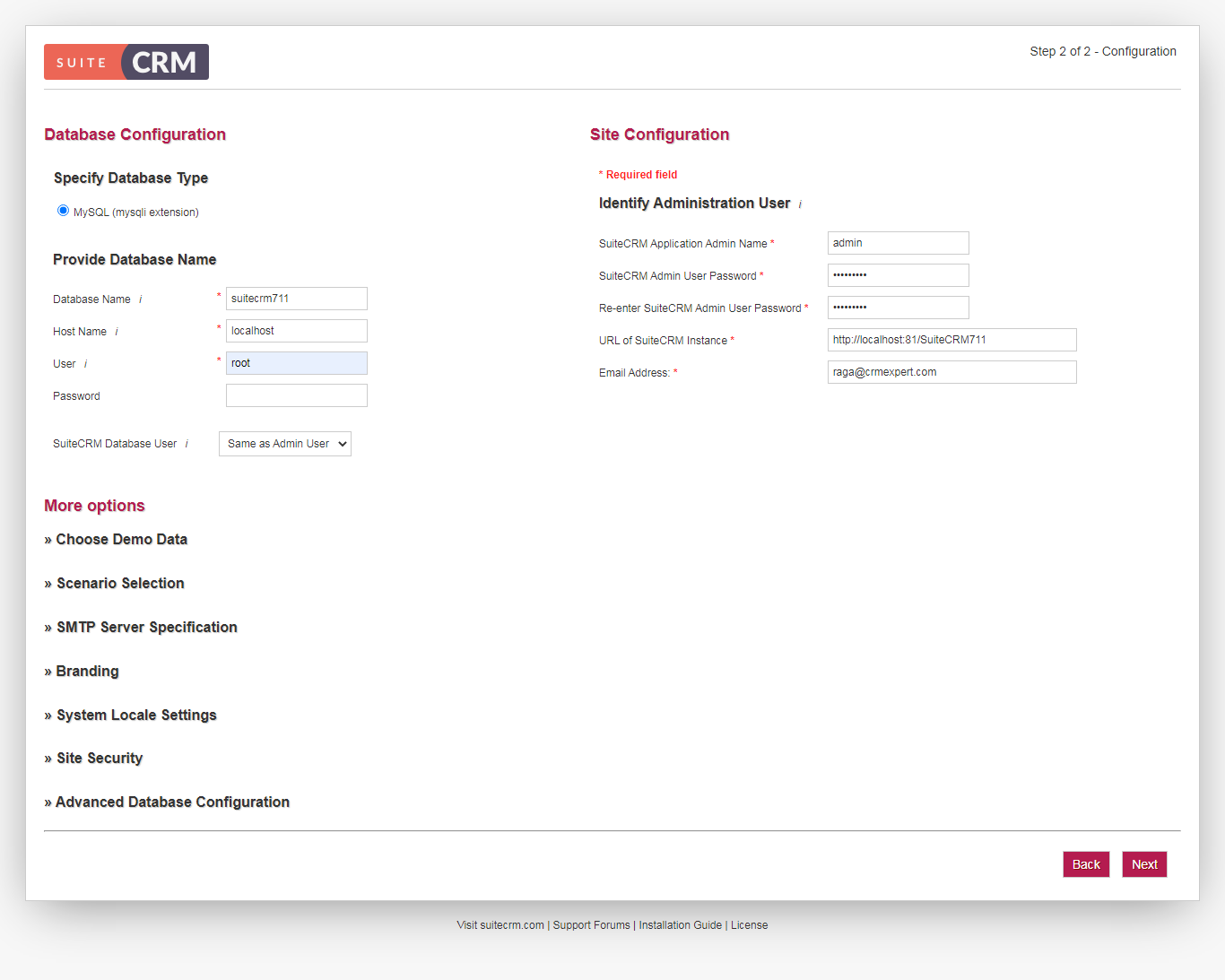
Installation in Progress: Please wait while the setup is being completed.
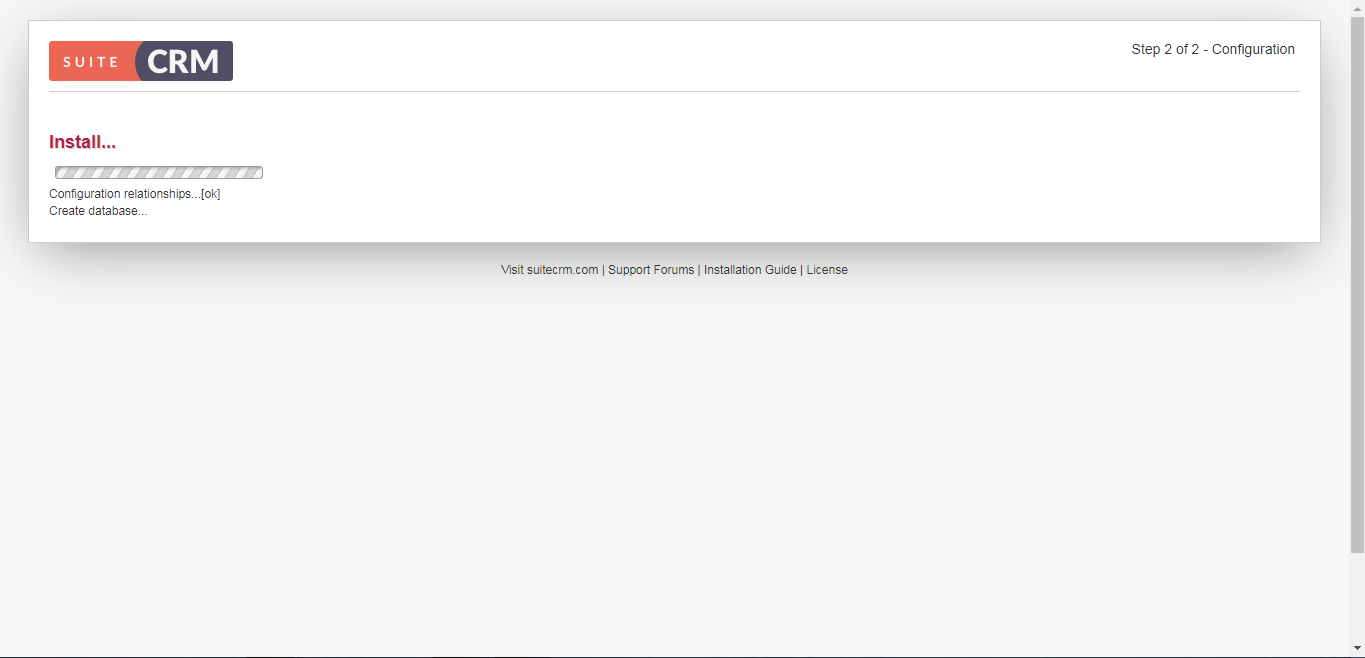
Setting up the SuiteCRM Configuration for optimal performance and customization.
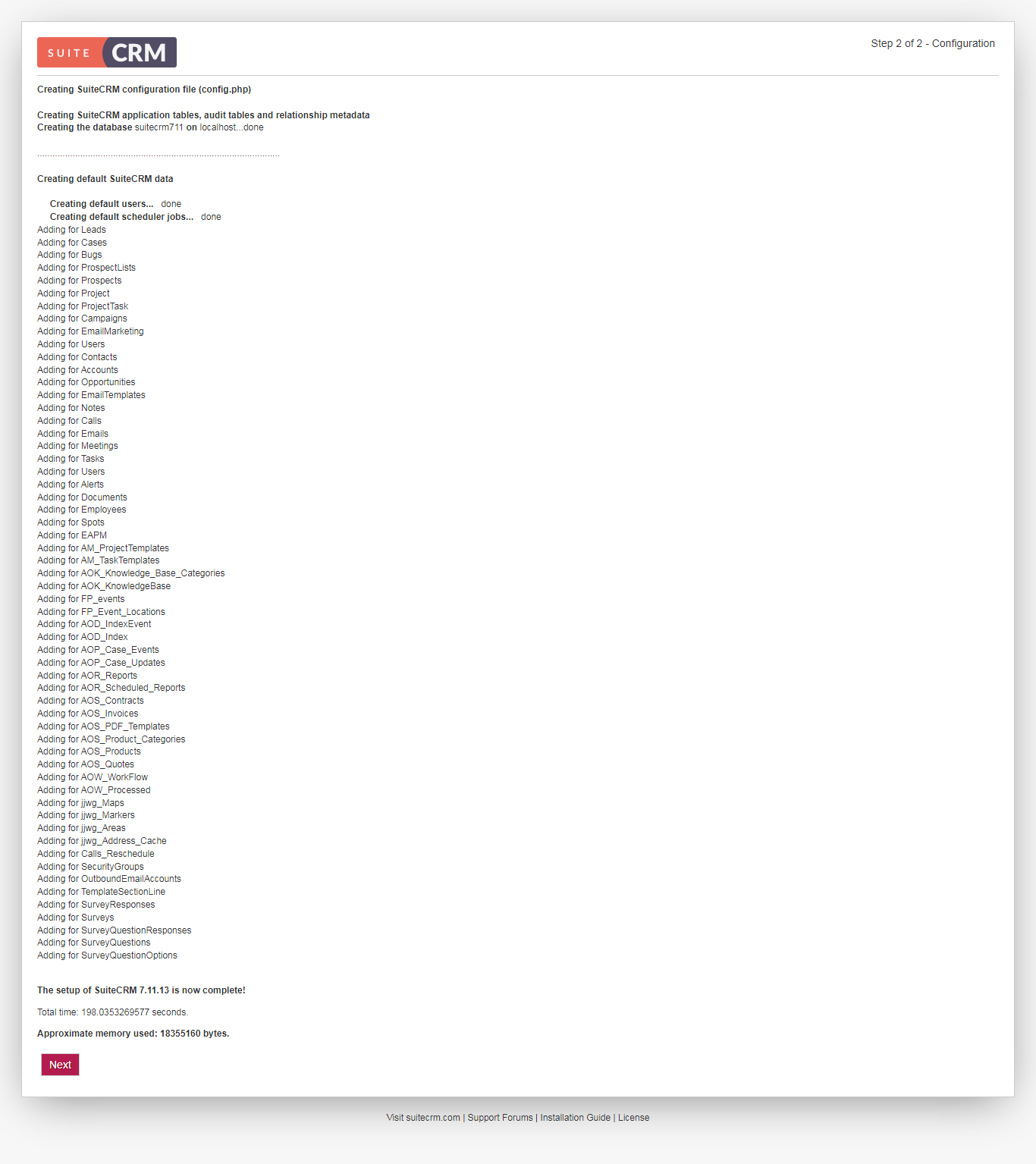
Finish the Full SuiteCRM Setup to get your CRM system up and running seamlessly.
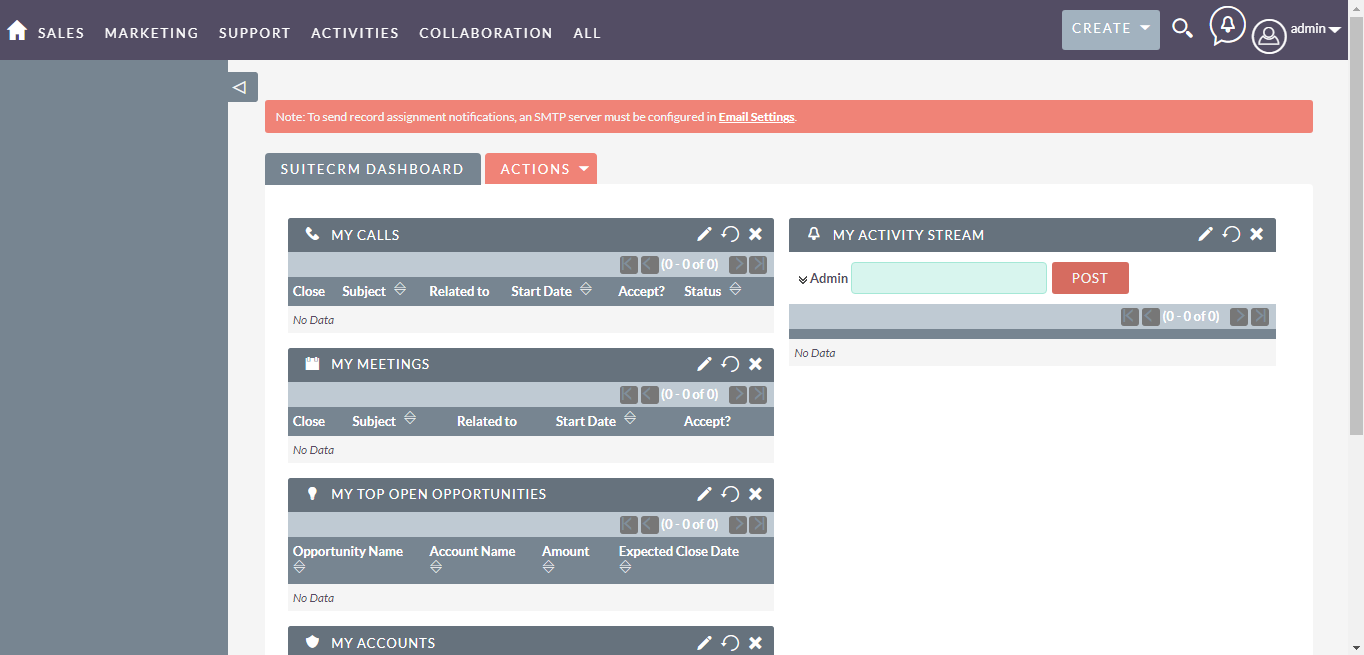
After a short while, the installation will be complete, and the platform will be ready for use.
Make the most of it and enjoy the experience!